Message templates are ready-made texts and files that can be quickly inserted into correspondence with clients. They help save time on typing frequently repeated messages and ensure a consistent communication style for all company employees.
Benefits of Using Templates
The template function significantly improves communication efficiency:
- Reduces response time to common client questions
- Ensures uniformity of responses among all employees
- Reduces the number of errors in replies
- Allows storing and instantly sending complex structures with files
- Simplifies the work of new employees who are not yet fully informed
How to Create and Use Templates
You can create a template directly in the chat window:
- Click the book icon button next to the text input field
- Select "Add"
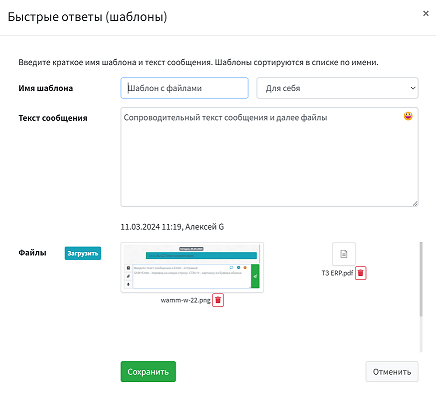
- Enter the template name (it will appear in the list)
- Choose who the template will be available to: only you or all users
- Enter the message text
- Add files if necessary
- Click "Save"

Template Capabilities
Templates in WAMM.chat can contain:
- Text with emojis and formatting
- Files and images
- Documents and presentations
This allows you to create comprehensive templates for different situations: sending price lists, directions, product catalogs, instructions, and other materials. Files are sent in the order they were added to the template.
Organizing and Searching Templates
For ease of use, templates are organized as follows:
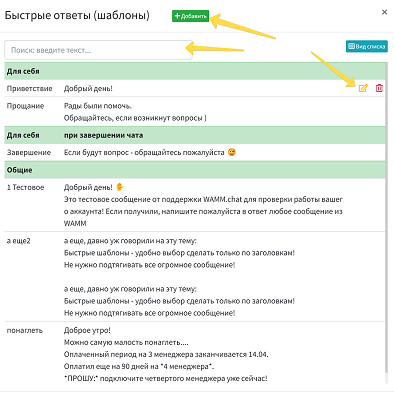
- Personal templates (available only to you) are displayed at the top of the list
- Shared templates (available to all users) follow below
- Within each group, templates are sorted alphabetically by default, but the order can be manually adjusted by dragging templates to the desired position. This is convenient when you have "hot" templates that need quick access.
For quick search of the desired template, a search bar is provided that looks for matches in both template names and their content.
Message Signature Template
A special type of template is the signature, which is automatically added to the end of each outgoing text message. This can be employee information (e.g., "Best regards, Manager Egor"), contact details, or any other standard information.
When the signature is active, a "signature" indicator is displayed in the text input field. Clicking this indicator allows you to disable the signature for a specific message. To completely disable the signature, you need to delete the corresponding template.

Practical Application of Templates in Business Processes
For Support:
- Greeting new clients
- Answers to frequently asked questions
- Instructions for solving common problems
- Informing about the status of an inquiry
For Sales:
- Presentation of products and services
- Sending price lists and catalogs
- Information about promotions and special offers
- Answers to questions about delivery and payment
For HR:
- Answers to candidate questions
- Sending questionnaires and test assignments
- Company information for applicants
Integration with Other WAMM.chat Features
The template function is closely integrated with other platform capabilities:
- Sending Messages - templates are available directly from the chat window
- Assigning Chat Responsible Persons - allows personalizing templates depending on who is conducting the dialogue
Using templates is a simple and effective way to standardize communication with clients and make operator work more productive. Regularly updating and expanding the template database helps maintain communication at a high level and respond quickly to changes in business processes.