In the Profile section, individual settings are configured for each user of the program. Each user can customize a range of options and the program's appearance to their preference.
In addition to the settings in the Profile, each user can set the sizes of the chat list window and the message window, choose whether to display the Info window, and configure personal Message Templates.
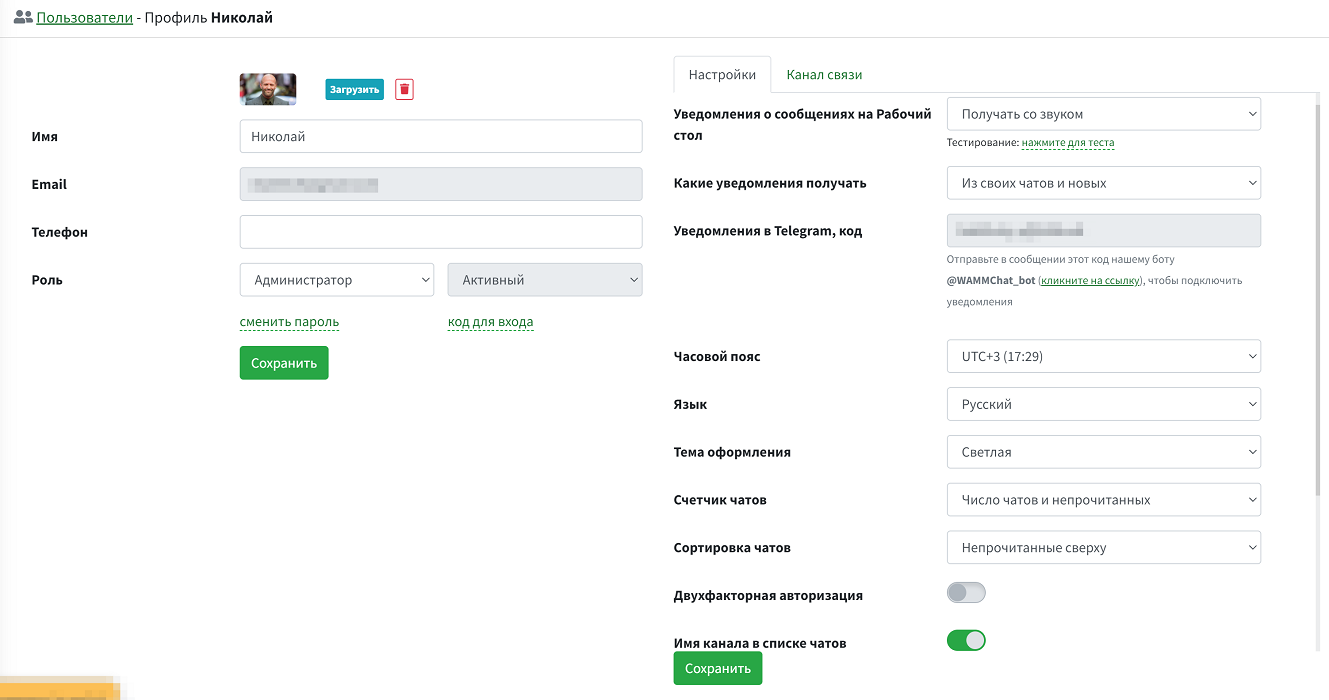 User Profile window
List of options and settings that can be changed in the Profile section:
- Username in the program
- Contact phone number (for reference)
- User avatar
- Password
- Login code
- Enable two-factor authentication
- Role (Administrator, User)
- Status (Active, Blocked)
- Delete user
- Desktop notifications (Receive silently; Receive with sound; Do not receive)
- Notifications in Telegram and MAX (you can reply directly from the notification - click "Reply" and the text will go to the appropriate chat)
- Which notifications to receive (From all chats; From my chats and new ones; Only from my chats)
- Time zone
- Interface language (Russian; English; Spanish)
- Theme (Light; Dark)
- Message counter display method (Number of chats; Number of chats and unread messages)
- Chat sorting method (By message time; Unread on top)
- Whether to display the channel name in the chat list
- Whether to mark a chat as read after opening it
- Receive newsletters and notifications via email
- Assign user as responsible when sending a message
If more than one messenger or communication channel is connected in the program, all account users are allowed to use all channels by default. The administrator can change this: restrict access on the Communication Channel tab.
Account administrators can access any user's profile and change their settings, block the user, or reset their password. What administrators cannot do is configure notifications to their personal Telegram and MAX, or set a login code - each user must do this themselves.